In This Guide
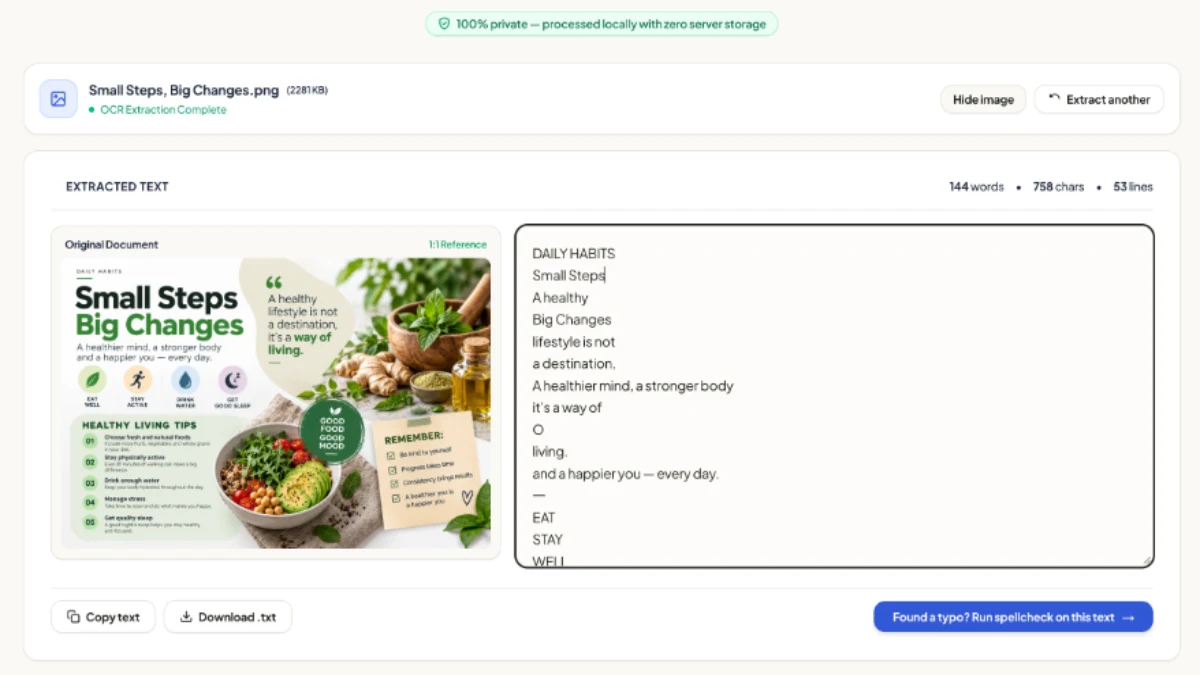
You took a photo of a printed page, a sign, a whiteboard or a screenshot, and now you need the words inside it. Typing them out by hand is slow and easy to get wrong. The better way is photo to text conversion, which is also called image to text or picture to text. A tool reads the letters in your picture and hands them back as text you can copy, edit and paste anywhere.
The quick answer: upload the picture to a free image to text tool, copy the result, then proofread it for small errors. The steps are below, along with phone shortcuts and fixes for photos that come out wrong.
Convert an image to text in 3 steps
- Open the tool. Go to the Spellense Image to Text tool.
- Add your picture. Upload the photo or drop it onto the page. Common image types such as JPG and PNG work well.
- Copy the text. Paste it into Word, Google Docs, an email or your notes app.
Then take one more minute to proofread. Text pulled from a picture almost always has a few small mistakes, and you can catch them quickly with the free Spellense spell checker.
Other ways to convert a picture to text
Your phone and computer may already do this for a few lines of text:
- iPhone, iPad and Mac (Live Text): Open the photo in Photos, touch and hold the words until they highlight, then tap Copy.
- Android (Google Lens): Open the photo in Google Photos or the Google app, tap Lens, choose Text, then tap Copy text.
- Windows 11 (Snipping Tool): Take a screenshot of the picture, then use Text actions to copy all the text.
Built-in tools are handy for a sentence or two. A web tool is easier when you have a full page, many photos, or you work across different devices.
Why your photo to text result looks wrong (and how to fix it)
Most bad results come from the photo, not the tool. These are the common problems:
- Blurry photo. The letters melt together. Retake it holding the phone steady, and tap the screen to focus on the text.
- Glare and shadows. A bright reflection or your own shadow hides letters. Move to even light and avoid the flash on glossy paper.
- Tilted or curved page. Letters at an angle get misread. Shoot straight on, and press curled pages flat.
- Low resolution or tiny text. Move closer or crop to the text area so the words fill the frame.
- Columns and tables. Text may come out in a jumbled order. Convert one column or one section at a time.
- Handwriting and fancy fonts. Printed text works best. Neat handwriting sometimes works, while messy handwriting and decorative fonts often do not.
- Low contrast. Light grey text on a white background is hard to read. Increase the contrast in your photo editor before converting.
How to take a photo that converts cleanly
- Use daylight or a bright, even light.
- Hold the phone parallel to the page, not at an angle.
- Fill the frame with the text, leaving a small margin.
- Keep the phone still and let the camera focus first.
- Convert the full-quality photo, not a heavily compressed copy.
Fix the mistakes text recognition leaves behind
No OCR tool is 100% accurate, even on a good photo, so a few slips are normal. Common errors include the letters “rn” read as “m”, the number 0 mixed up with the letter O, a lowercase “l” confused with the number 1, and words that run together or break apart. Always read the result once, and run it through a spell checker. If you work with scanned documents, our guide on finding spelling mistakes in a scanned PDF covers the same problem for full PDFs.
Is it safe to convert photos with personal details?
Be careful with anything sensitive, such as ID cards, bank statements or medical papers. Spellense processes files in memory and does not store them permanently. Whichever tool you use, check how it handles your files, and crop out the parts you do not need before you upload.
Frequently asked questions
Are image to text, photo to text and picture to text the same thing?
Yes. They all mean turning the words in a picture into editable text. The technology behind them is called OCR, short for optical character recognition.
Can I convert an image to text for free?
Yes. The Spellense Image to Text tool is free to use, and your phone has free built-in options too.
Can I convert a photo to text on my phone?
Yes. Open the tool in your phone’s browser, or use Live Text on iPhone or Google Lens on Android.
Can it read handwriting?
Neat, printed-style handwriting sometimes works. Messy handwriting usually needs manual correction.
Can I convert a screenshot to text?
Yes. A screenshot is just an image, and its clean digital text usually converts very accurately.
How accurate is it?
With a sharp, well-lit photo of printed text, results are usually very good, but no OCR tool is ever 100% accurate. Accuracy drops with blur, glare and unusual fonts, so always proofread.
Try it now
Have a photo with words you do not want to retype? Open the Image to Text tool, upload your picture, copy the text, and check it with the spell checker.
Have a Photo to Convert Right Now?
Upload your picture to Spellense. Extract clean, copyable text in seconds without retyping.